01 · Get started
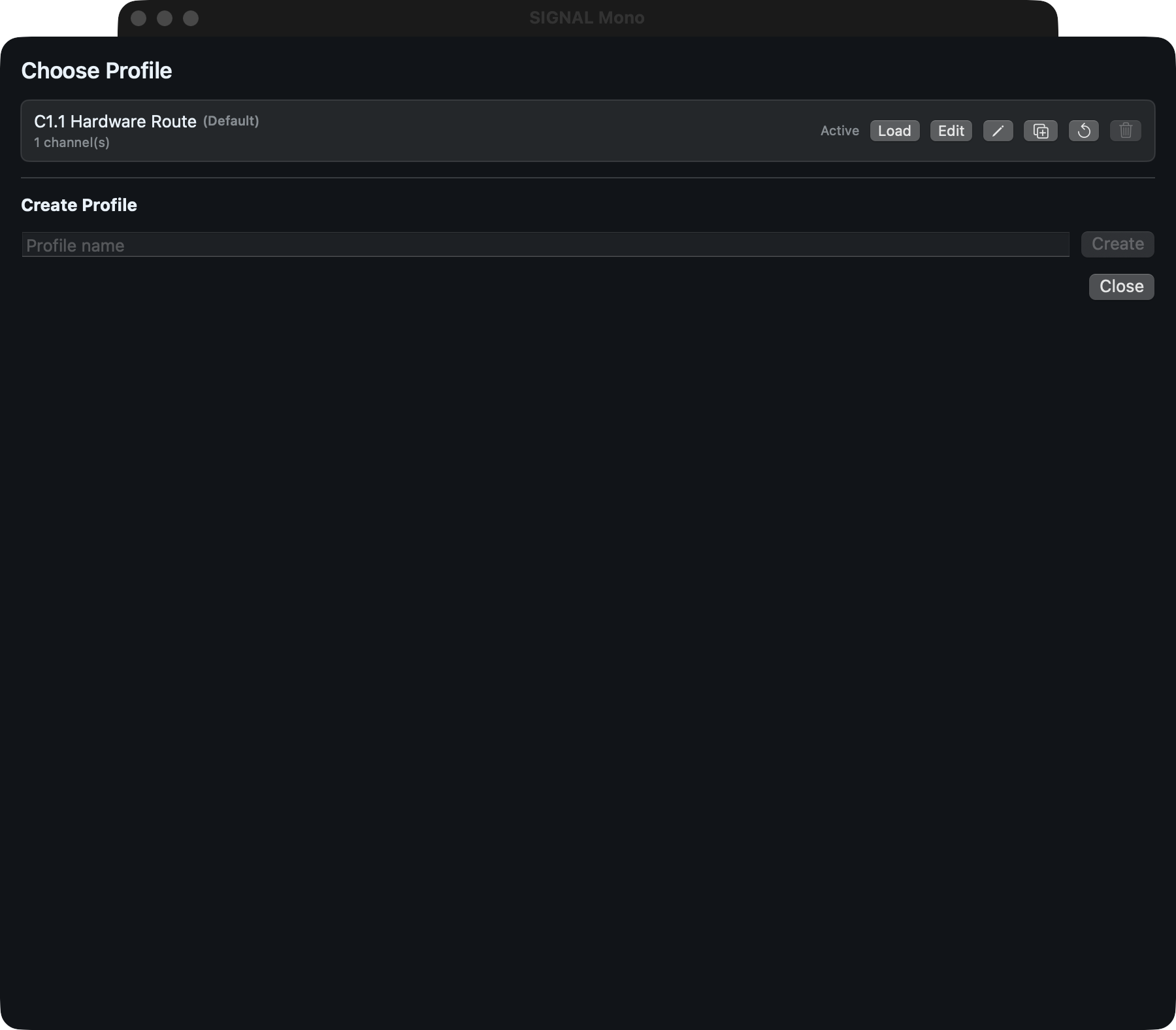
Create and apply a profile
- Connect and power the intended audio devices before opening SIGNAL Monitor.
- Allow microphone access when macOS requests it.
- Create or edit a Profile and explicitly choose the intended input, output, sample rate, buffer, and channel routes.
- Confirm the displayed route is correct before selecting Start.
- Start remains muted. Unmute only after verifying the route cannot feed an output back into an input.
A restored Profile never starts or unmutes audio automatically. Start and Unmute are separate deliberate actions.
02 · Controls
Monitor the route
Source fader
Adjusts one mono source or linked stereo source.
Pan / balance
Positions a mono source or balances a linked stereo source without collapsing it.
Mute / Solo
Silences sources or auditions one or more sources while preserving route and level state.
Templates
Save and restore reusable channel and processing layouts, with hardware scope only when explicitly included.
Mono Check
Temporarily folds a stereo Monitor route to dual mono without changing the saved route.
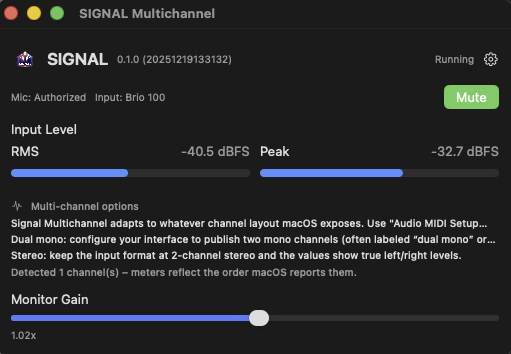
Monitor controls
Control and meter the actual post-mix output sent to the selected destination.
Edition feature summary
- Everything shared with Mono that applies to a multi-source mixer
- Up to eight occupied channels from one selected physical input device
- Mono input sources and adjacent linked stereo input pairs
- Per-source gain, pan for mono sources or balance for stereo sources, mute, multi-solo, metering, color, and identity
- Reusable channel and processing Templates
- One selected physical mono or stereo Monitor destination
- Mono Check for temporary dual-mono compatibility listening
03 · Hard gate
Reduce unwanted noise
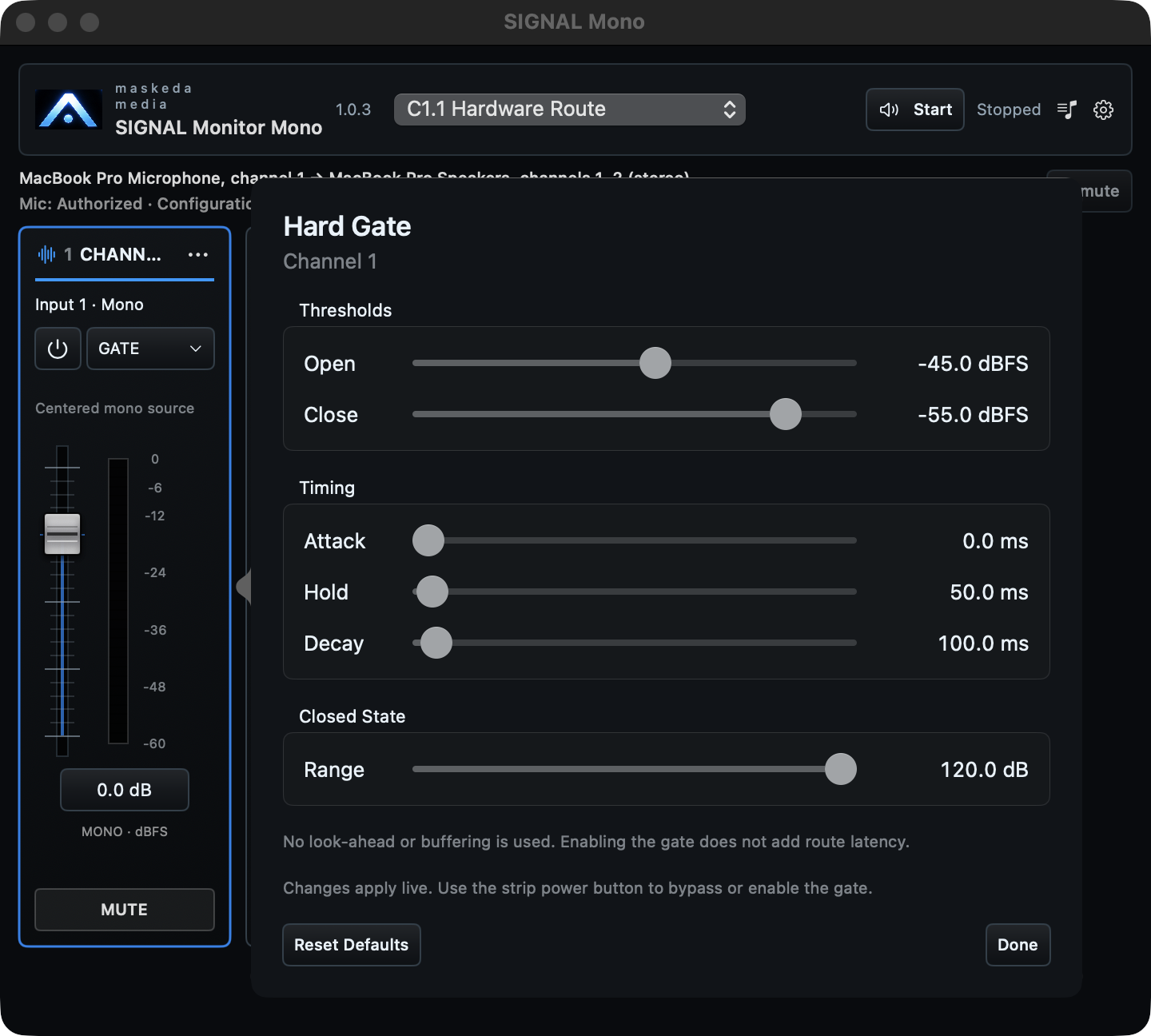
The native Hard Gate is bypassed by default. Its enable button is separate from the editor so bypass remains visible without opening controls.
- Open threshold: Sets the level that opens the Gate.
- Close threshold / hysteresis: Closes below the open point to reduce chatter.
- Attack: Controls how quickly the Gate reaches its open state.
- Hold: Keeps the Gate open briefly after the signal falls.
- Release: Controls how quickly attenuation returns.
- Range: Limits how much the closed Gate reduces the signal.
Gate controls update the live route without Apply. Bypass the Gate first when diagnosing a missing or unexpectedly quiet source.
04 · Troubleshooting
Recover the exact route
- No input level
- Refresh Inputs, confirm microphone authorization, exact device/channel selection, cabling, interface gain, source mute, fader, and Gate state.
- No monitored output
- Refresh Outputs, confirm the exact destination, Monitor/global mute state, source and Monitor faders, interface routing, and speaker/headphone path.
- Device disconnected
- Reconnect the same device, refresh the appropriate device list, and use Retry Exact Route. SIGNAL does not silently substitute a different route.
- Sample-rate conflict
- Stop monitoring, reconcile the hardware and DAW sample rate, then restart explicitly.
- Feedback or rapidly rising level
- Mute all output immediately and remove the physical or software feedback path before retrying.
- Quit
- Press Command-Q from the mixer or any SIGNAL Monitor window or sheet.
05 · Diagnostics
Capture useful evidence
Open Settings, then Diagnostics. Record the edition, version/build, selected route, active sample rate and buffers, latency components, counters, and any route or processor warning.
Copied diagnostics are designed to omit audio, Profile/channel names, hardware serials, credentials, and private paths. Review any attachment before sharing it.
For SIGNAL Monitor support, email support@maskedamedia.com.