01 · Get started
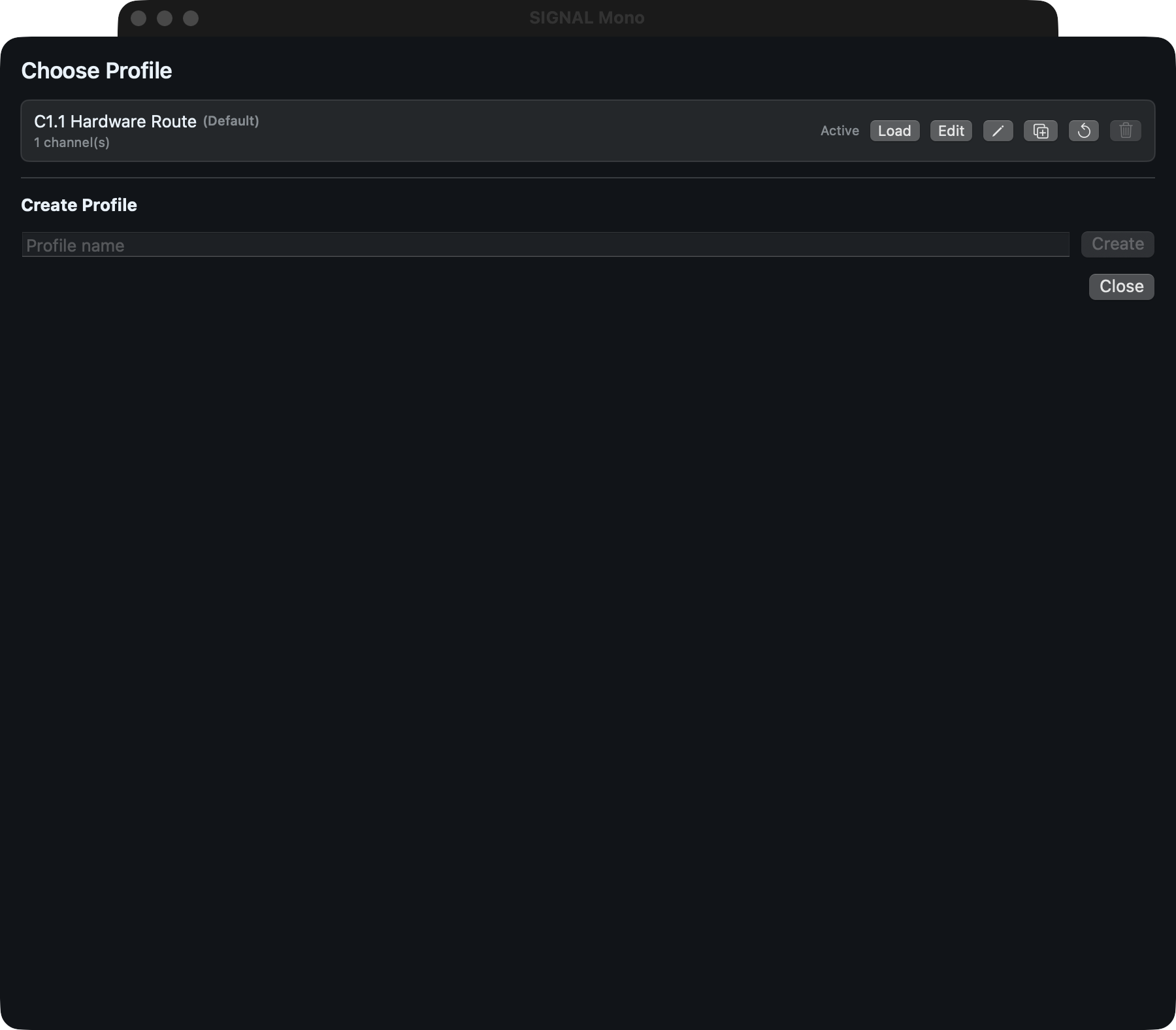
Create and apply a profile
- Connect and power the intended audio devices before opening SIGNAL Monitor.
- Allow microphone access when macOS requests it.
- Create or edit a Profile and explicitly choose the intended input, output, sample rate, buffer, and channel routes.
- Confirm the displayed route is correct before selecting Start.
- Start remains muted. Unmute only after verifying the route cannot feed an output back into an input.
A restored Profile never starts or unmutes audio automatically. Start and Unmute are separate deliberate actions.
02 · Controls
Monitor the route
Source fader
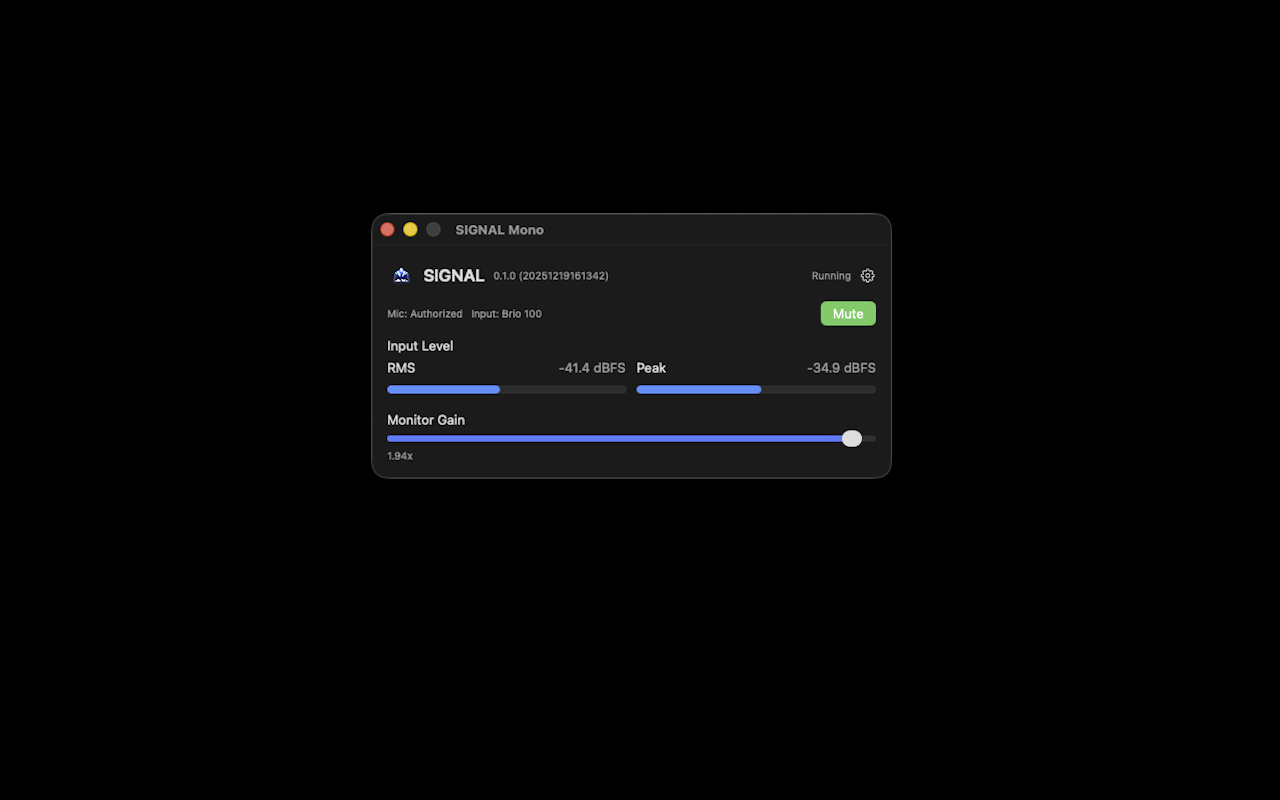
Adjusts the selected mono source before the Monitor stage.
Source Mute
Silences the source without changing its fader value.
Monitor fader
Adjusts actual post-processing output level.
Monitor / Global Mute
Two synchronized controls for the same final mute state.
Meters
Source and Monitor RMS/Peak meters display their actual processing stages in dBFS.
Edition feature summary
- One explicitly selected mono hardware input channel
- One selected mono output or adjacent stereo output pair
- Centered mono monitoring across a stereo pair without a pan control
- Source and Monitor gain, mute, RMS/Peak metering, and native Hard Gate
- Named autosaved Profiles with create, duplicate, rename, reset, delete, import, and export
- Exact-route recovery, diagnostics, latency reporting, and version-specific Help
- One running Mono instance per logged-in user
03 · Hard gate
Reduce unwanted noise
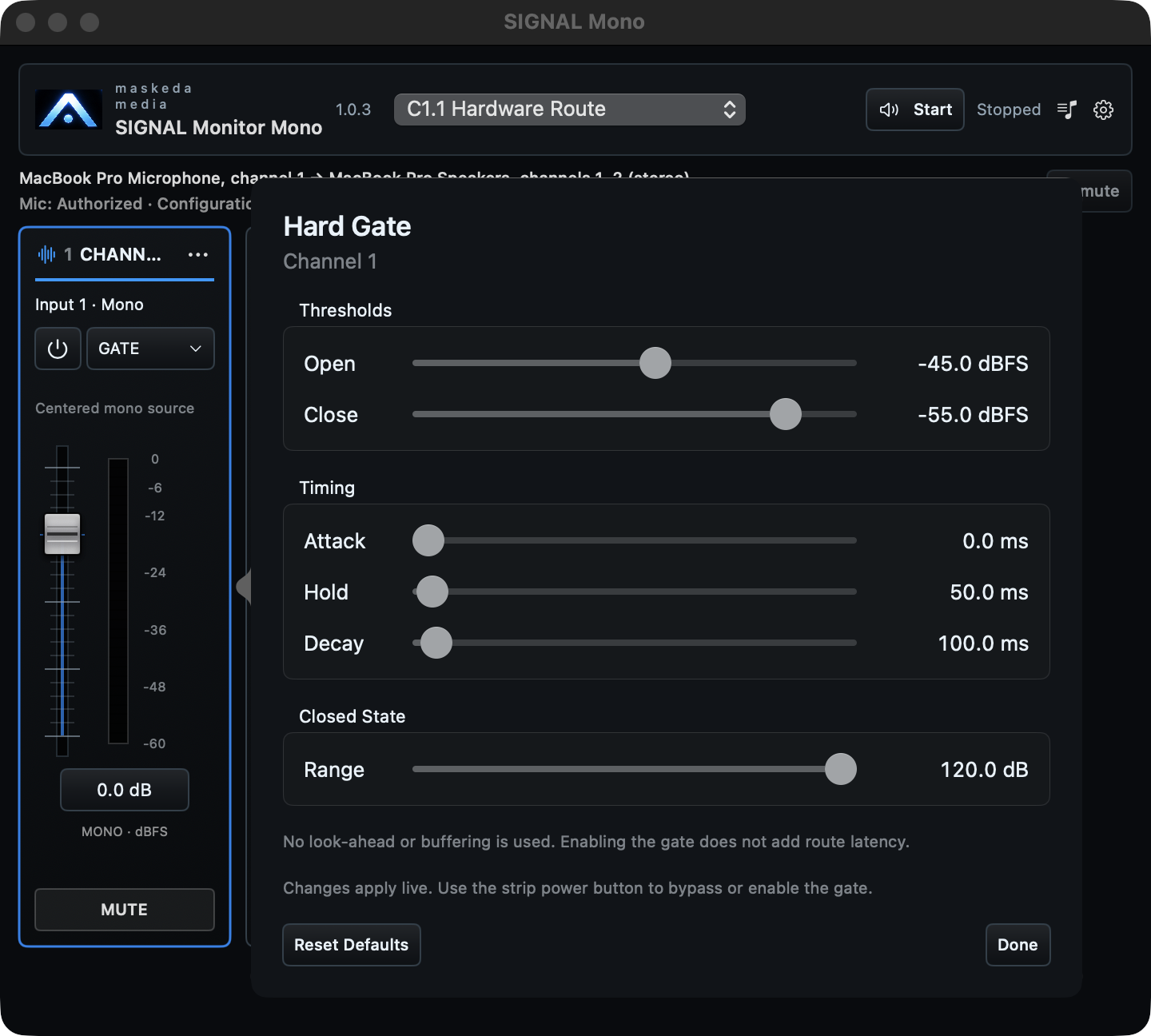
The native Hard Gate is bypassed by default. Its enable button is separate from the editor so bypass remains visible without opening controls.
- Open threshold: Sets the level that opens the Gate.
- Close threshold / hysteresis: Closes below the open point to reduce chatter.
- Attack: Controls how quickly the Gate reaches its open state.
- Hold: Keeps the Gate open briefly after the signal falls.
- Release: Controls how quickly attenuation returns.
- Range: Limits how much the closed Gate reduces the signal.
Gate controls update the live route without Apply. Bypass the Gate first when diagnosing a missing or unexpectedly quiet source.
04 · Troubleshooting
Recover the exact route
- No input level
- Refresh Inputs, confirm microphone authorization, exact device/channel selection, cabling, interface gain, source mute, fader, and Gate state.
- No monitored output
- Refresh Outputs, confirm the exact destination, Monitor/global mute state, source and Monitor faders, interface routing, and speaker/headphone path.
- Device disconnected
- Reconnect the same device, refresh the appropriate device list, and use Retry Exact Route. SIGNAL does not silently substitute a different route.
- Sample-rate conflict
- Stop monitoring, reconcile the hardware and DAW sample rate, then restart explicitly.
- Feedback or rapidly rising level
- Mute all output immediately and remove the physical or software feedback path before retrying.
- Quit
- Press Command-Q from the mixer or any SIGNAL Monitor window or sheet.
05 · Diagnostics
Capture useful evidence
Open Settings, then Diagnostics. Record the edition, version/build, selected route, active sample rate and buffers, latency components, counters, and any route or processor warning.
Copied diagnostics are designed to omit audio, Profile/channel names, hardware serials, credentials, and private paths. Review any attachment before sharing it.
For SIGNAL Monitor support, email support@maskedamedia.com.